Add-Ons#
Earlier this month, we got feedback from a client to add the ability to include add-ons for a product. That is, the ability to allow customers choose complementary products to a main product. For example, if you sell office wear like shirts, you may want customers to be able to choose between a bow-tie or a long tie as part of the same item.
This could have been possible to finesse using the variant system. But if the selection affected the price of the item, this was not possible.
So we implemented Add-Ons.
Add-Ons are items that cannot be generally searched from the product catalog but can only be selected as part of a main product.
There are two steps to setting up Add-ons:
1. Adding add-ons#
To add Add-Ons, you do this from the admin dashboard. Click Products from the admin navigation menu, a sub-menu appears then you choose Add-Ons. From here, you can add as many add-ons as you want.
The next step is to include the add-ons on the products you sell.
2. Attaching add-ons to products#
You can attach add-ons to products. These are done in groups. For example, when selling multi-flavor cakes, you can have 3 groups: Flavor 1, Flavor 2, Flavor 3.
To set this up, click on Products from the admin navigation menu, select the product you want to add the add-ons for then click “Add Add-Ons” from the product detail.
From the add-ons setup page, you can add the different groups and the sub items as you want. You can mark each group as required or optional and whether multiple selections can be made.
You can edit the add-ons anytime.
Phone Login#
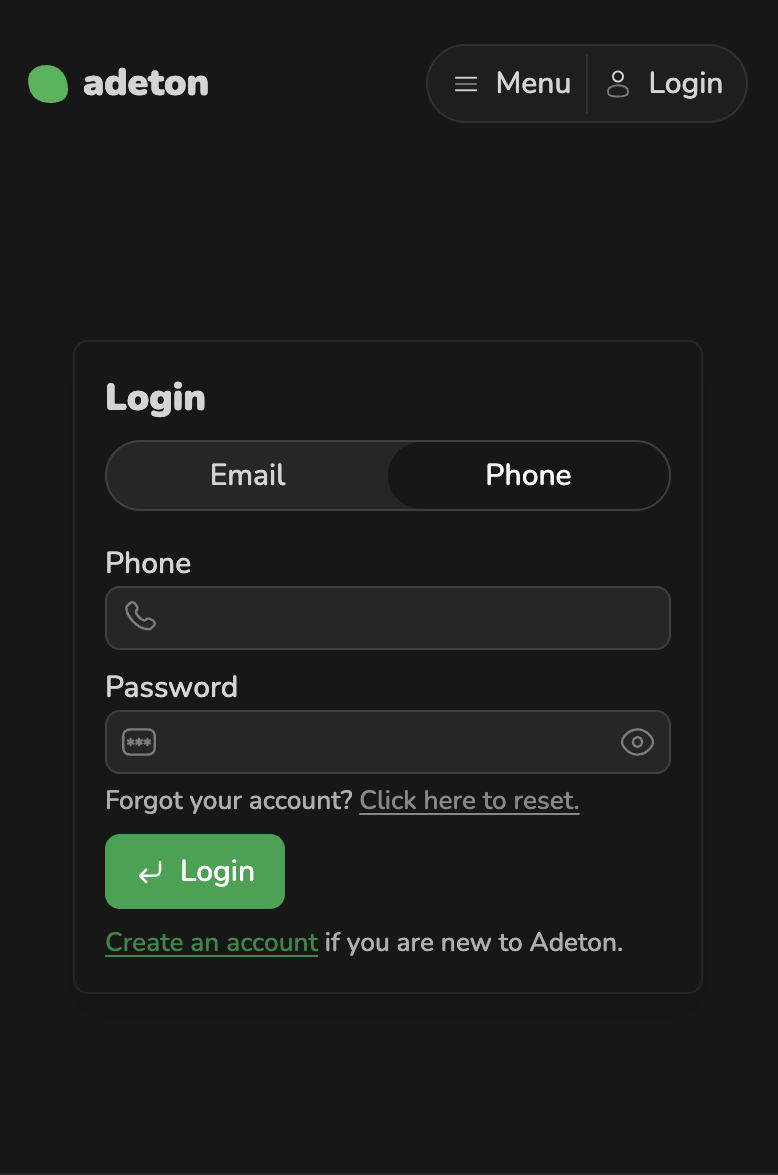
We understand that phone is more accessible than email to a number of people. So we added the ability to choose to sign up (and log in) with a phone number or email — all up to you.
Either way, you still get notified when you get orders so you don’t miss anything.